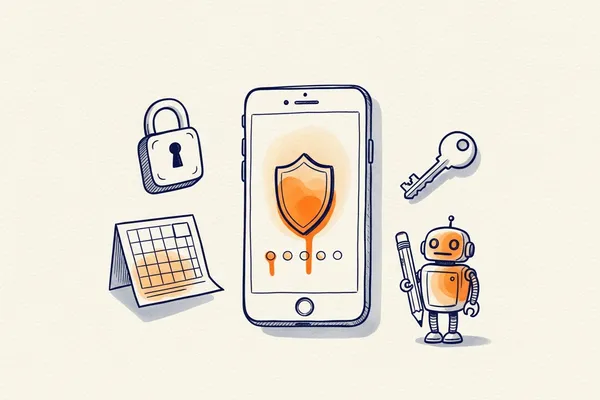
Two-factor authentication: the two-minute upgrade that protects your entire Mailpro account
Two-factor authentication (2FA) is the single most effective step you can take to protect your Mailpro account, and it takes less than two minutes to switch on. It adds a second lock on top of your password, so that even if your password is guessed, leaked, or phished, an attacker still cannot get in without the phone in your pocket. For an email marketing account — where your contact lists, sender reputation, and subscriber trust all live — that second lock is the difference between a near-miss and a disaster.
Key takeaways
- Two-factor authentication requires something you know (your password) plus something you have (a code from your phone), so a stolen password alone is no longer enough to break in.
- Mailpro uses app-generated TOTP codes that refresh every 30 seconds and are computed offline — they never travel by SMS or email, the two channels attackers most often intercept.
- For email marketers, an account takeover puts your contacts' data, your sender reputation, and your brand all at risk at once.
- Setup takes three steps and under two minutes: install an authenticator app, scan a QR code, confirm one six-digit code.
- Losing your phone does not lock you out — your account administrator or Mailpro support can verify your identity and restore access.
What is two-factor authentication, exactly?
Two-factor authentication adds a second, independent lock to your account. Instead of relying only on something you know (your password), it also requires something you have (your phone). Both factors must check out before you are let in, which is why a leaked password on its own no longer opens the door.
Here is how it works with Mailpro: when you log in, after entering your password you are asked for a six-digit code generated by an authenticator app on your phone — apps like Google Authenticator, Microsoft Authenticator, Authy, 1Password, or Bitwarden. The code changes every thirty seconds and is computed offline on your device using the TOTP (Time-based One-Time Password) standard.
That last detail matters more than it sounds. Because the code is generated directly on your phone, it never travels by SMS or email — two channels that attackers have learned to intercept through SIM-swapping and inbox compromise. Even if someone has your password, without your phone in their hand, they simply cannot get in.
Why does two-factor authentication matter for email marketers especially?
For an email marketing account, a takeover is not just a personal headache — it can harm every subscriber on your list. Three things are on the line at once, and a single compromised login puts all of them at risk.
Your contacts' data is at stake
Your address books contain the personal information of people who trusted you with it. A breach of your account is a breach of their data, and under regulations like the GDPR that is your responsibility to protect. Strong account security is part of the same discipline as good list management: it protects the people behind the email addresses.
Your sender reputation is on the line
An attacker who gains access to an email platform account usually has one goal: sending spam or phishing campaigns through it. A single malicious blast from your account can burn a sender reputation you spent years building, and rebuilding trust with mailbox providers is slow, painful work.
Your brand is in the blast radius
Emails sent from your account carry your name. If your subscribers receive a phishing message that appears to come from you, the trust you have built with them takes the hit — and that trust is far harder to win back than any password is to reset. If you want to go deeper on the human side of account security, our guide on handling forgotten passwords with confidence is a useful companion read.
In other words: in email marketing, account security is not just an IT concern. It is list hygiene, deliverability, and brand protection rolled into one.
Ready to switch it on? You can enable two-factor authentication in your Mailpro Security settings in about two minutes — no technical setup required.
How do I set up two-factor authentication on Mailpro?
Enabling two-factor authentication on Mailpro takes three steps and under two minutes. We recently redesigned the experience to make it as smooth as possible:
- Install an authenticator app on your phone. Google Authenticator, Microsoft Authenticator, Authy, 1Password, and Bitwarden all work with Mailpro.
- Scan the QR code shown in your account's Security settings. The app links itself to your account instantly.
- Confirm with the six-digit code your app generates — and you are done. Step-by-step instructions are in our FAQ on how to enable Mailpro two-factor authentication.
From then on, logging in takes just a few extra seconds: type your password, glance at your phone, enter the code. A few seconds per login, in exchange for a dramatically more secure account.
"But what if I lose my phone?"
Losing your phone does not mean losing your account. It is the most common hesitation, and it is a fair one — but the safeguards are straightforward. Your account administrator can disable 2FA for you, and the Mailpro support team can help verify your identity and restore access if needed. You will never be locked out for doing the right thing. If you want the details before you start, see our FAQ on whether you need your phone to use two-factor authentication.
Frequently asked questions
Is two-factor authentication really necessary if I have a strong password?
Yes. A strong password protects against guessing, but not against phishing or data breaches, where the password is captured or leaked in full. Two-factor authentication defends against exactly those cases: even a correct, stolen password cannot complete a login without the second factor on your phone.
Does Mailpro send the 2FA code by SMS or email?
No. Mailpro uses app-generated TOTP codes, computed offline on your device and refreshed every 30 seconds. Because the code never travels over SMS or email, it cannot be intercepted through SIM-swapping or a compromised inbox — a meaningful security advantage over code-by-text systems.
Which authenticator apps work with Mailpro?
Any standard TOTP authenticator works, including Google Authenticator, Microsoft Authenticator, Authy, 1Password, and Bitwarden. You can use whichever app you already trust; Mailpro follows the open TOTP standard rather than locking you into one vendor.
How long does it take to set up?
Under two minutes. Install an authenticator app, scan the QR code in your Mailpro Security settings, and confirm one six-digit code. It is a one-time setup that keeps protecting you on every login afterward.
Can an administrator require 2FA for a whole team?
Account administrators manage two-factor authentication for their users and can help re-enable access if a team member loses their device. If you run campaigns with multiple users, enabling 2FA across the team closes the weakest-link gap that a single unprotected login would otherwise leave open.
Mailpro and account security
Two-factor authentication, built into your Mailpro account
Protect your contact lists, your sender reputation, and your subscribers' trust. Turning on 2FA takes about two minutes and keeps defending your account every day afterward.