
Optimize images for email — right inside Mailpro®.
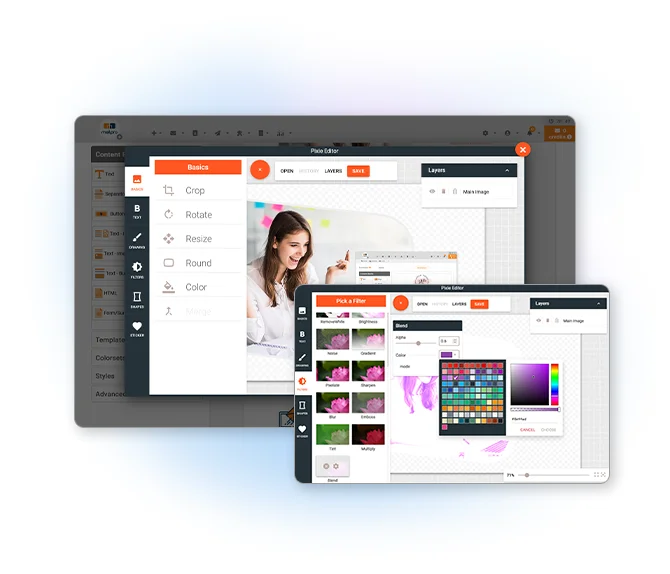
Crop, resize, compress and add ALT text without ever leaving your campaign. Prepare visuals that load fast and render everywhere — no switching tools, no re-uploads.
Why optimize images for email?
The Mailpro image editor streamlines everything you need to prepare visuals: crop and resize to the right dimensions, compress to reduce file size, and add accessible ALT text — all inside the editor. Lighter images load faster and improve engagement, uniform sizes keep your branding consistent, and descriptive ALT text keeps content understandable with images off or on a screen reader.
Prefer building first? Start in the newsletter builder, fine-tune your images, then track performance with campaign statistics.
How it works
Upload or select
Pick an image from your library inside the message editor.
Crop, resize & compress
Fit your layout and reduce file size while preserving visual quality.
Add ALT text & insert
Describe the image for accessibility, then save and drop it into your email.
Before sending, run a quick spam check and preview across inboxes.
Frequently asked questions
Which image formats are supported?
Does compression reduce quality?
Can I edit animated GIFs?
Will my original image be overwritten?
Prepare perfect images in seconds
Start free and crop, resize and compress your newsletter images right where you build your campaign.