
Compare campaigns and see what wins.
Go deeper than a single send. Contrast the effectiveness of your campaigns side by side — opens, clicks, bounces, geolocation and devices — and identify exactly which ones delivered the results that matter to your goals.
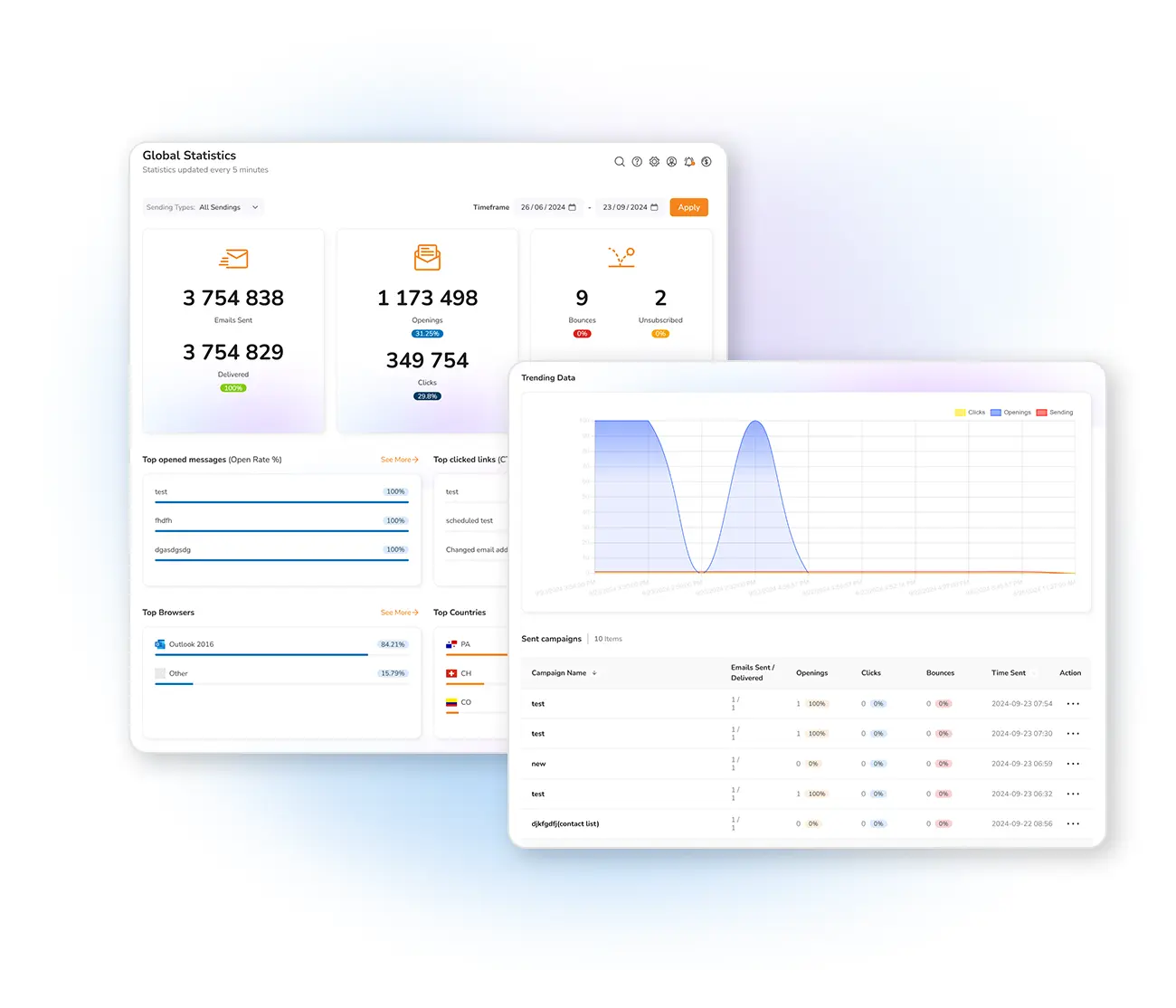
A deeper analysis, in a few clicks
Open your tools, select statistics by campaign, and find the Compare tab in the left panel. Activate it, choose how many campaigns to contrast — regardless of date — and you'll have access to every send you've made.
Inside, you get a general view of the selected campaigns and the key metrics for each: emails sent, percentage opened, clicks and undelivered mail. Graphs let you visualize these numbers ordered by day or hour.
Compare on every dimension
Compare last year's Christmas campaign against this year's to decide what to change next. Find tips in the Mailpro Academy and our email metrics guide.
Frequently asked questions
How do I compare campaigns?
What can I compare?
Learn what makes a campaign win
Start free and compare your sends to make every next campaign better.